
Overview: This article intends to provide a series of steps for assigning volunteers to correspond with existing residents.
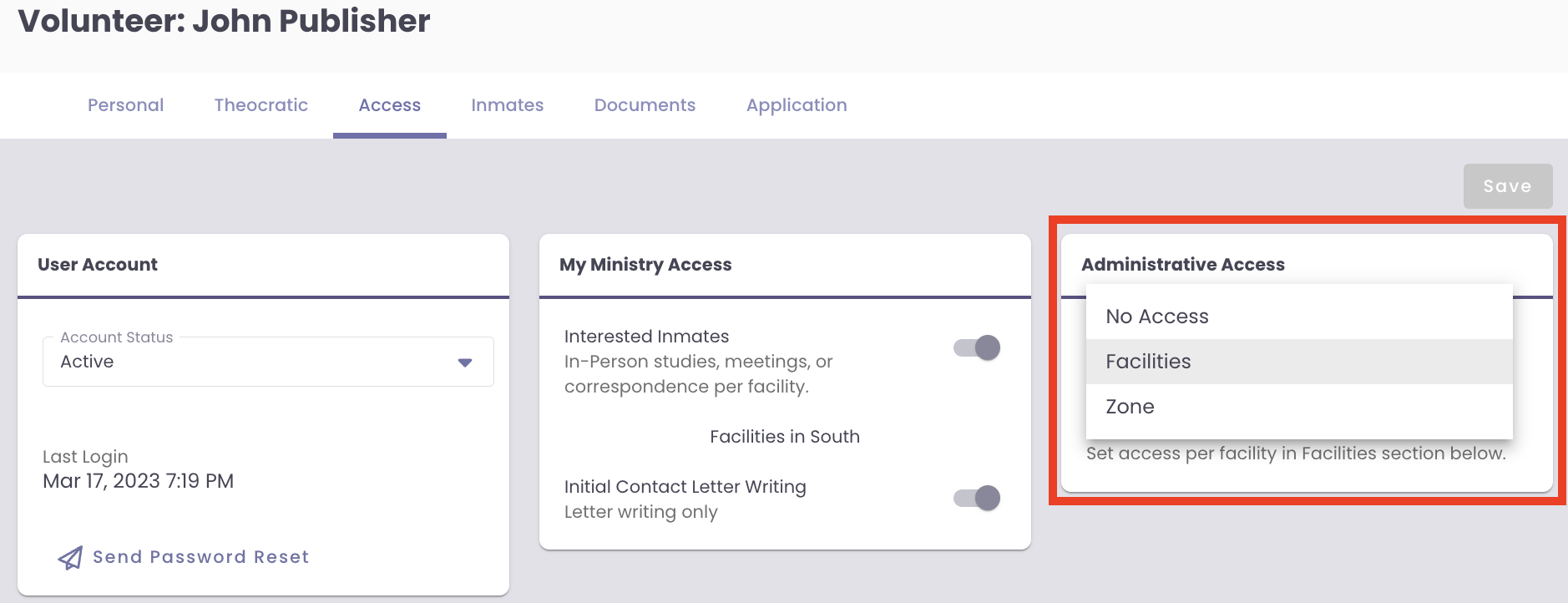
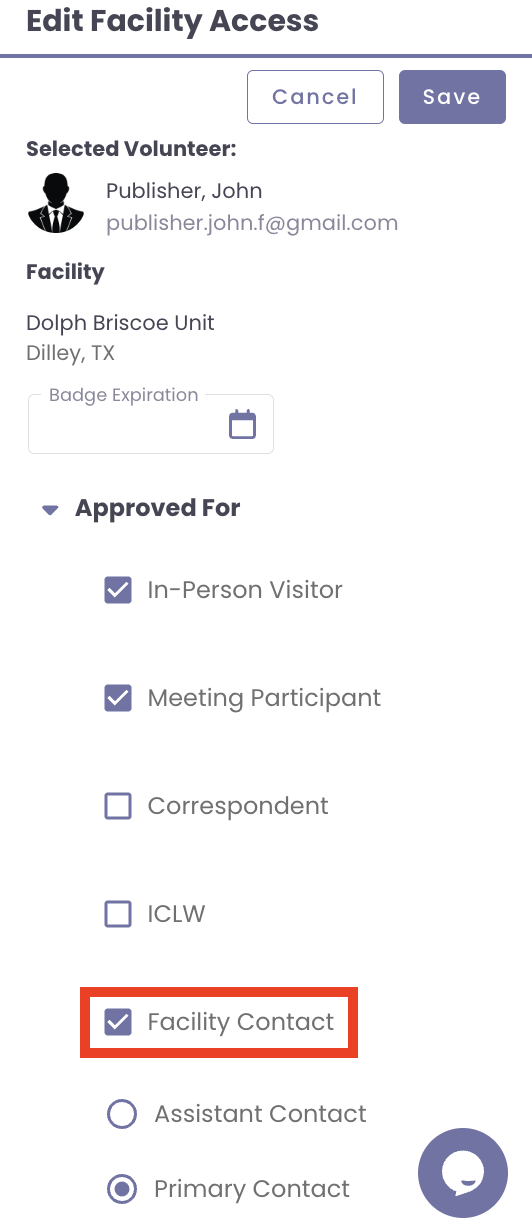
Type of System Access: To follow this article, the minimum permissions needed is Facilities with approval set to Facility Contact for the Facility.
Assign Volunteers to Correspond with Residents not yet in Gate Access
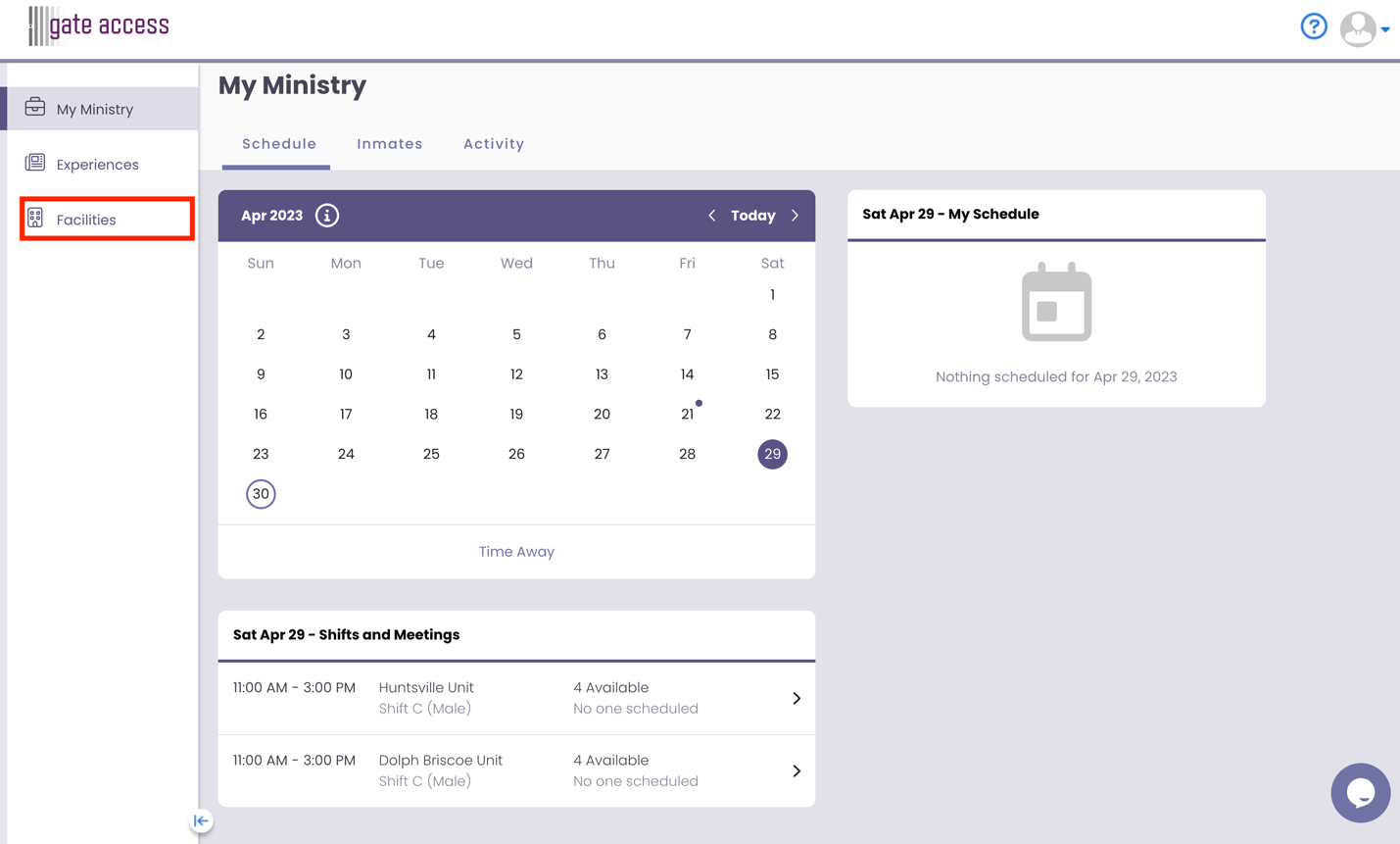
Step 1 From the Navigation Panel, select Facilities.
Step 2 Enter the Facility Name, City, or Branch ID, then click the Search.
- Note: Volunteers with Facility Administrative Access Levelwill see facilities they are assigned to.
- Zone and Regional Administrative Access Level will search within the States and Zones that are assigned to their volunteer profile.
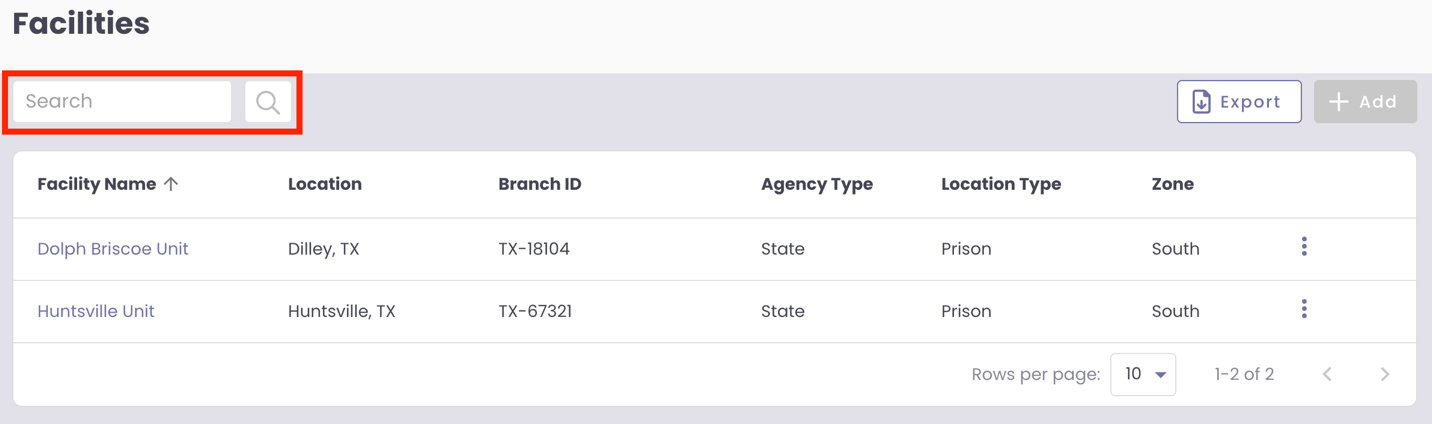
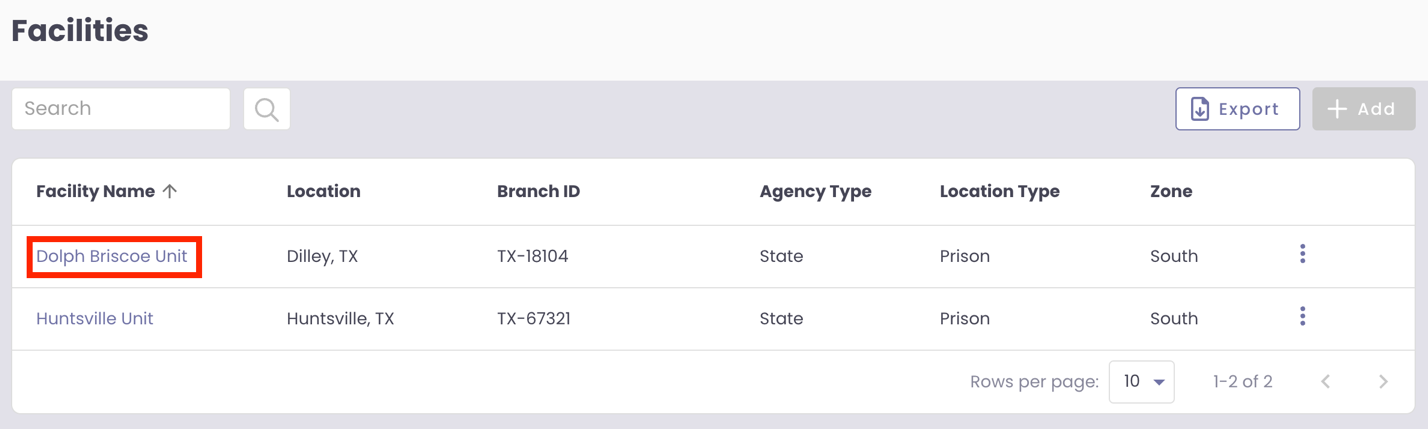
Step 3 Click on the desired Facility Name.
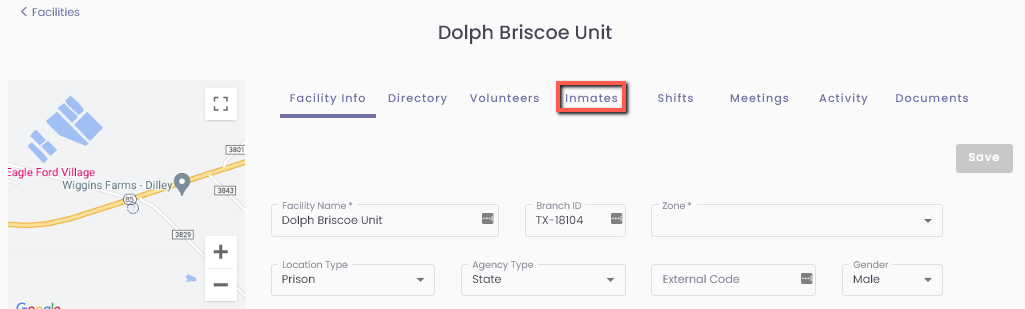
Step 4 Select the Residents Tab.
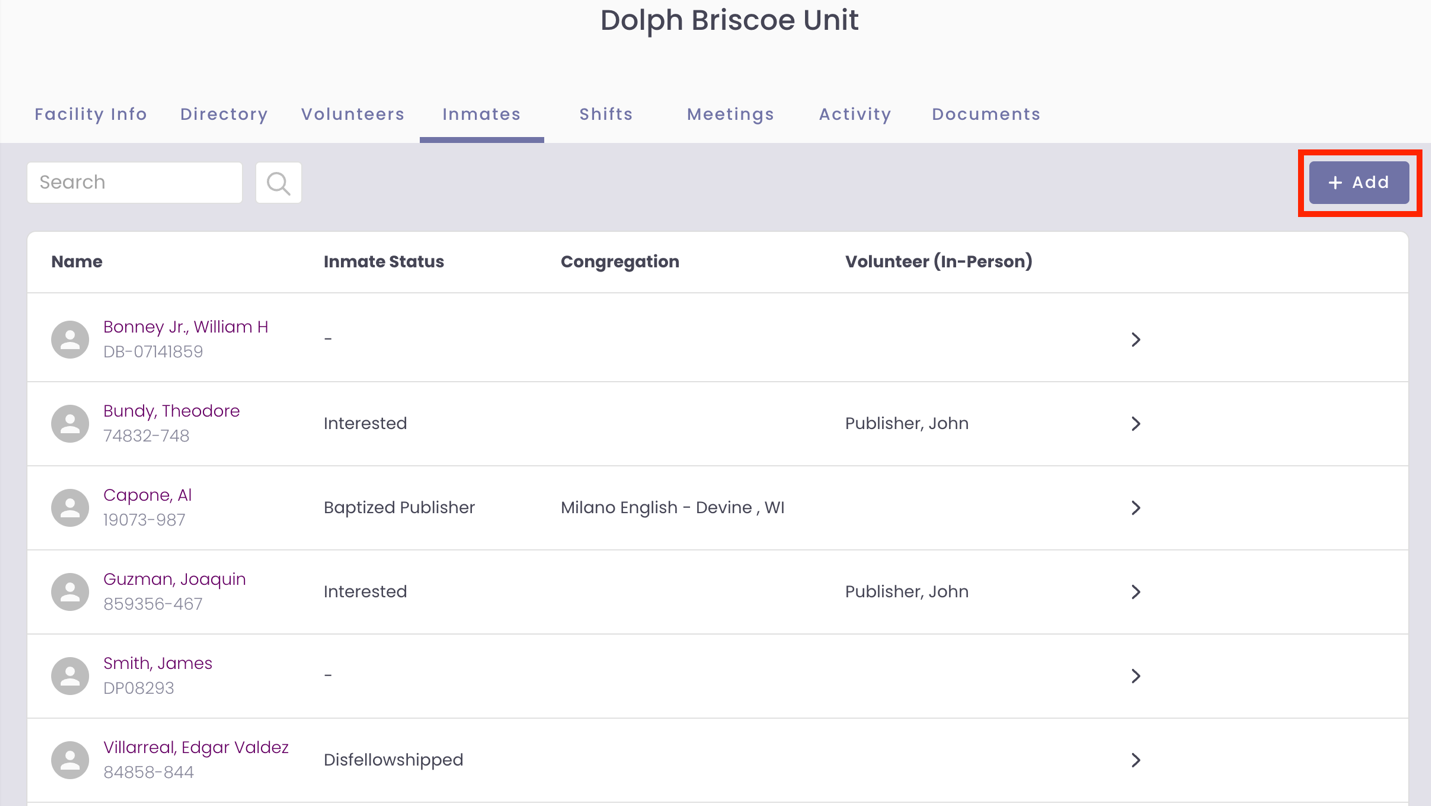
Step 5 To add a new resident, click the Add Icon.
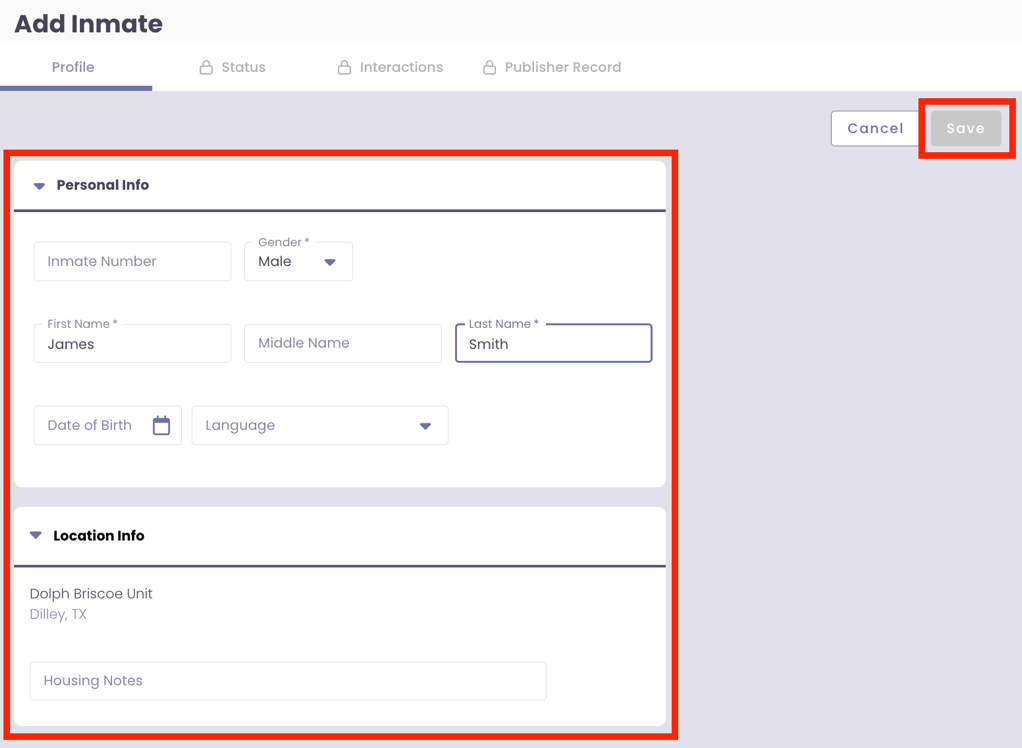
Step 6 On the Add Resident page, fill out the Profile of the resident.
- Under the Personal Info card, the fields Gender *, First Name *, and Last Name * are required fields.
- Under the Location Info card, enter any Housing Notes about the resident that would be helpful.
- Click Save to add the new resident to the Facility.
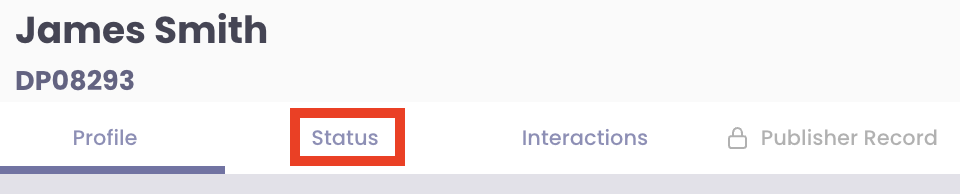
Step 7 You are now on the newly created resident's Profile page. Click the Status at the top of the Profile page.
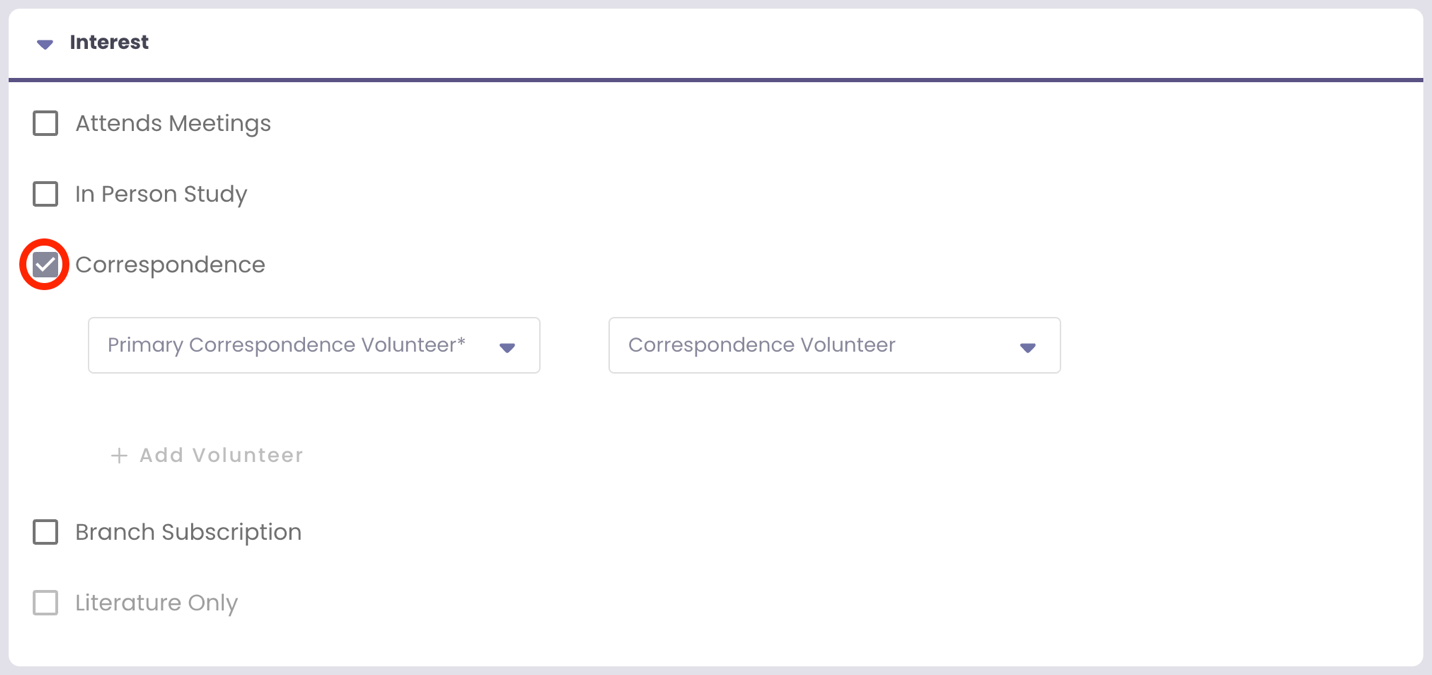
Step 8 From the Interest card, the Correspondence box should be selected.
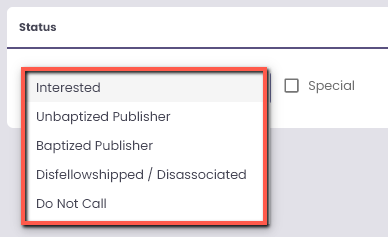
- Note: If the Spiritual Status has not been defined, select the dropdown menu in the Status card to select the resident's Spiritual Status. After you select the resident's Spiritual Status, the Interest card will appear below. Select any boxes that apply to the resident's interest level.
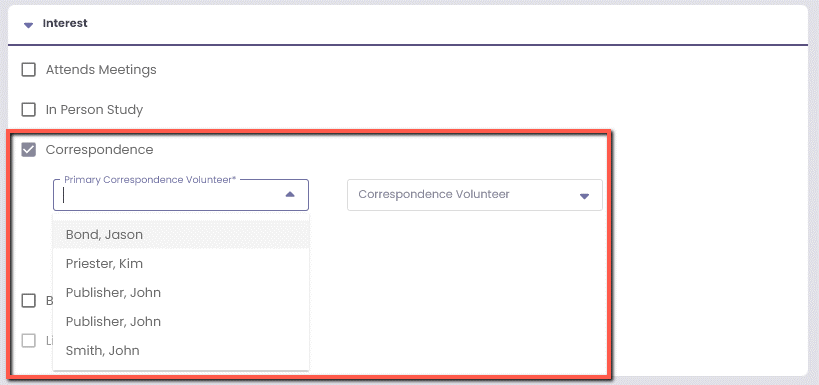
Step 9 From the Primary Correspondence Volunteer dropdown menu, select the primary Volunteer to correspond with the resident. From the Correspondence Volunteer dropdown menu, select the alternate Volunteer to correspond with the resident.
- Note: To assign more than two Volunteers, click the + Add Volunteer button to add as many alternate Volunteers as needed.
Step 10 Click the Save button

Assign Volunteers to Correspond with Existing Residents in Gate Access
Step 1 From the Navigation Panel, select Facilities.
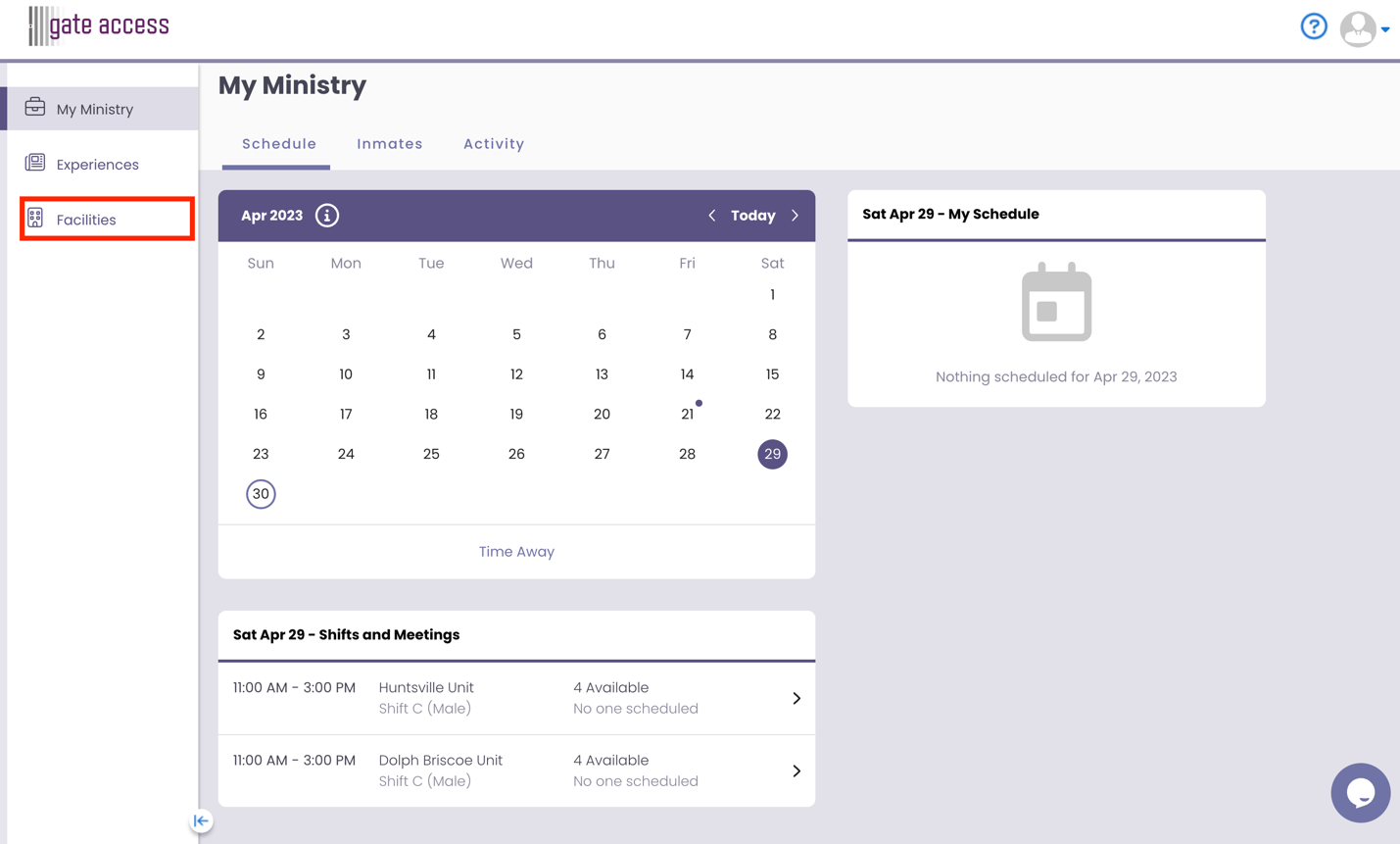
Step 2 Enter the Facility Name, City, or Branch ID, then click the Search.
- Note: Volunteers with Facility Administrative Access Level will see facilities they are assigned to.
- Zone and Regional Administrative Access Level will search within the States and Zones that are assigned to their volunteer profile.
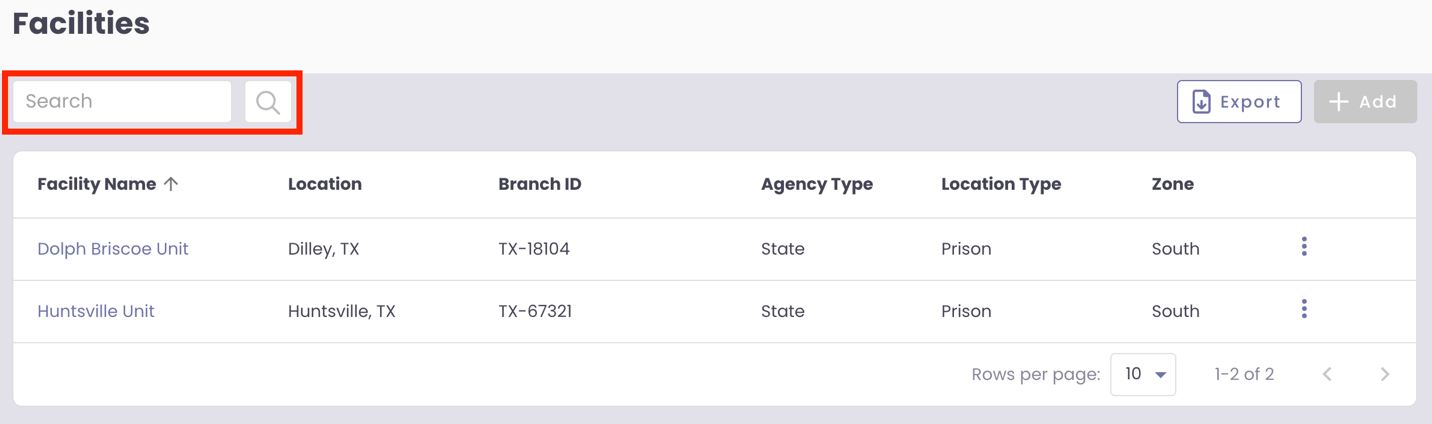
Step 3 Click on the desired Facility Name.
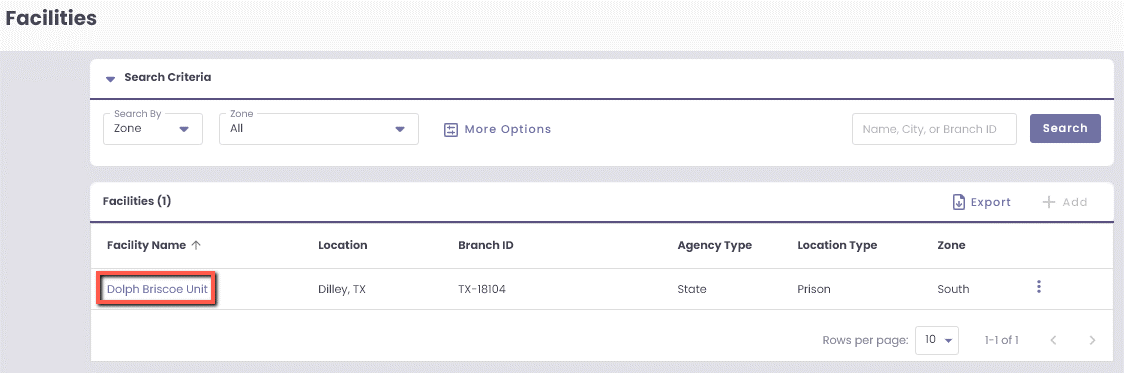
Step 4 Select the Residents Tab.
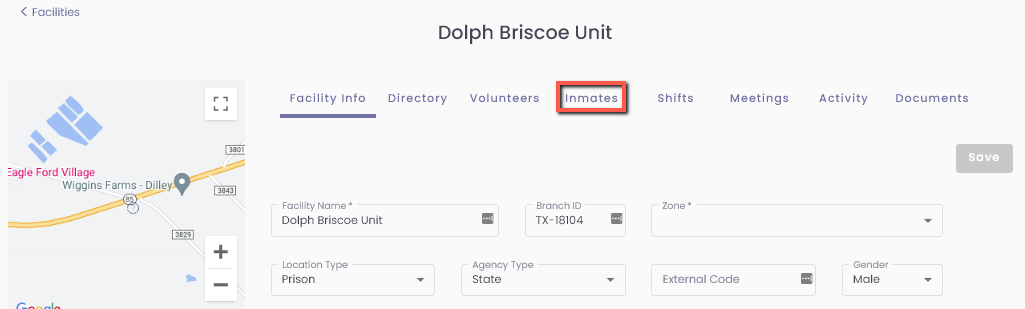
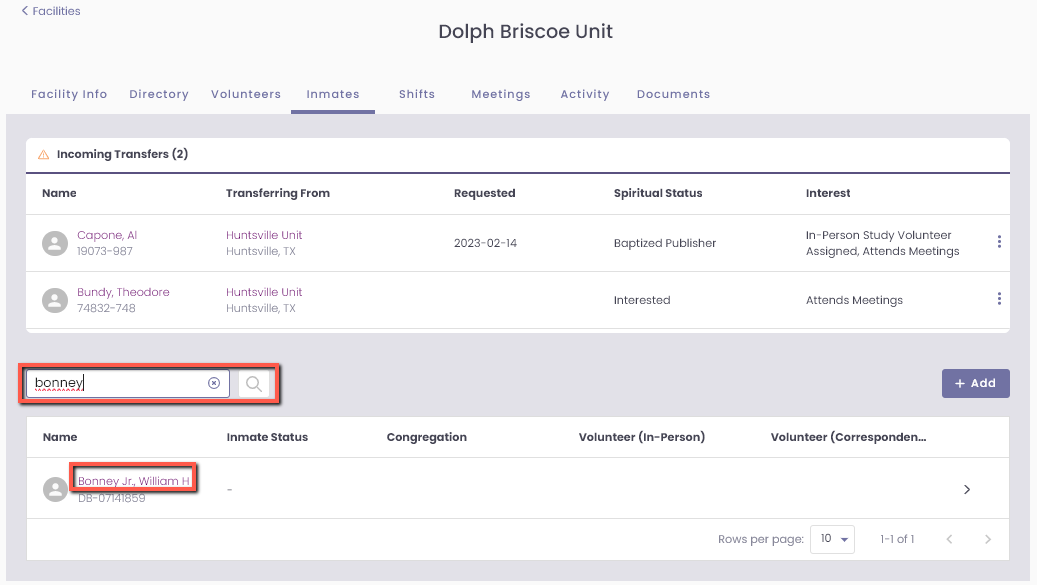
Step 5 From Search, enter the resident's name and click on the Search Icon. Click on the resident’s name.
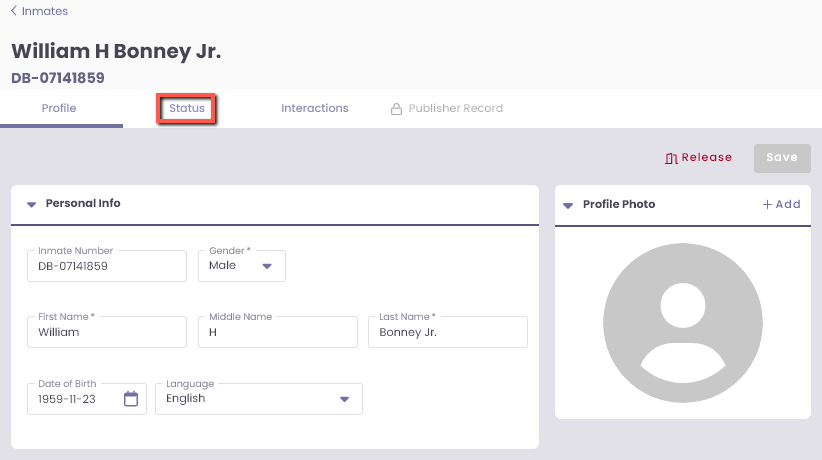
Step 6 From the Residents Profile, select Status Tab.
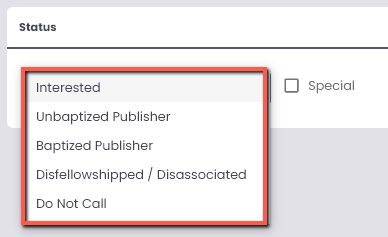
Step 7 From the Interest card, the Correspondence box should be selected.
- Note: If the Spiritual Status has not been defined, select the dropdown menu in the Status card to select the resident's Spiritual Status. After you select the resident's Spiritual Status, the Interest card will appear below. Select any boxes that apply to the resident's interest level.
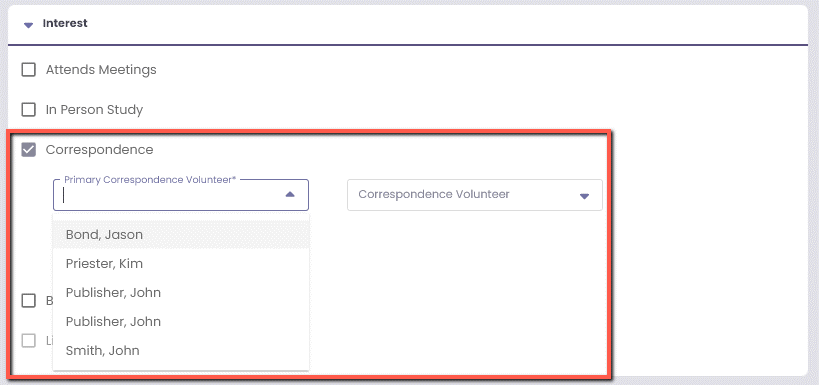
Step 8 From the Primary Correspondence Volunteer dropdown menu, select the primary Volunteer to correspond with the resident. From the Correspondence Volunteer dropdown menu, select the alternate Volunteer to correspond with the residents.
- Note: To assign more than two Volunteers, click the + Add Volunteer button to add as many alternate Volunteers as needed.
Step 9 Click the Save button.

Last Updated: May 20, 2023