
Overview: This article will explain how to transfer an resident from one facility to another.
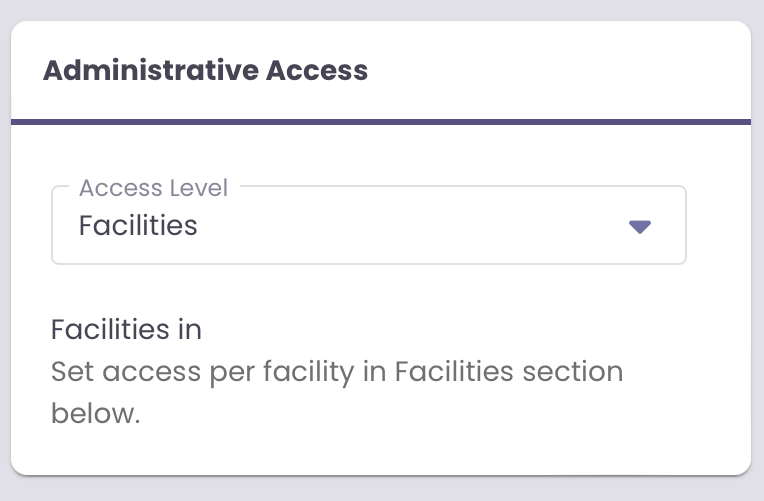
Type of System Access: To follow this article, the minimum access level is Facilities.
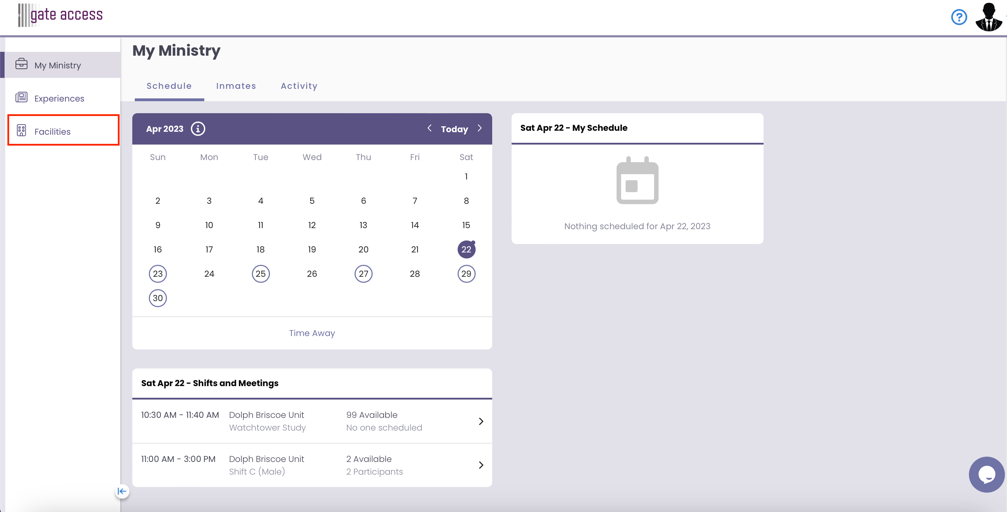
Step 1 In the Navigation Panel, click on Facilities.
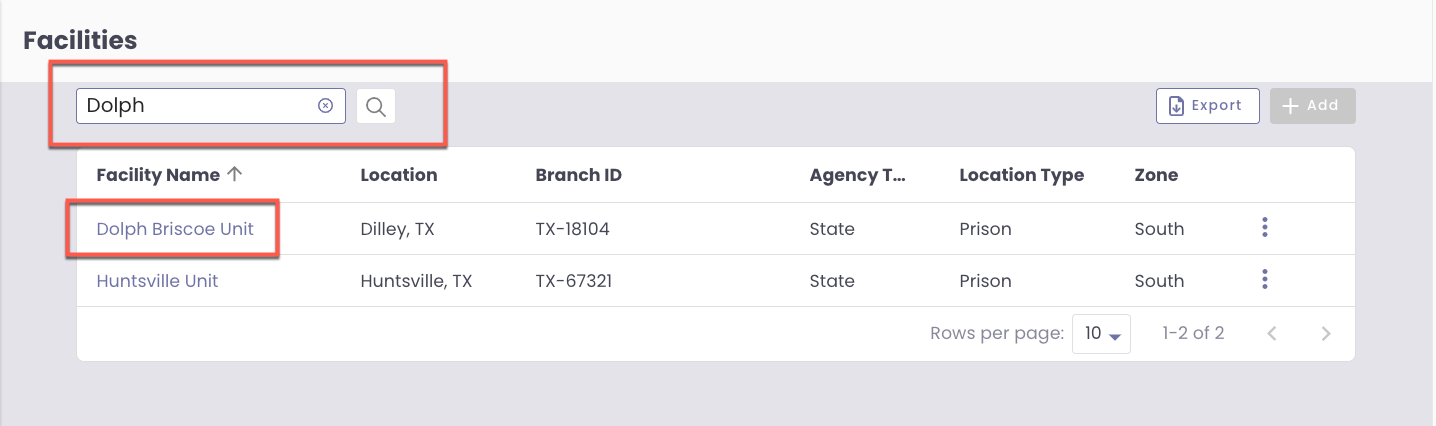
Step 2 You can use the search box to enter the name of the facility the resident is currently located then, click on the Search button. When the name of the facility is displayed in the Facilities card, click on the name.
- Note: Alternatively, you can click on the ellipses to the right of your facility name and select Edit.
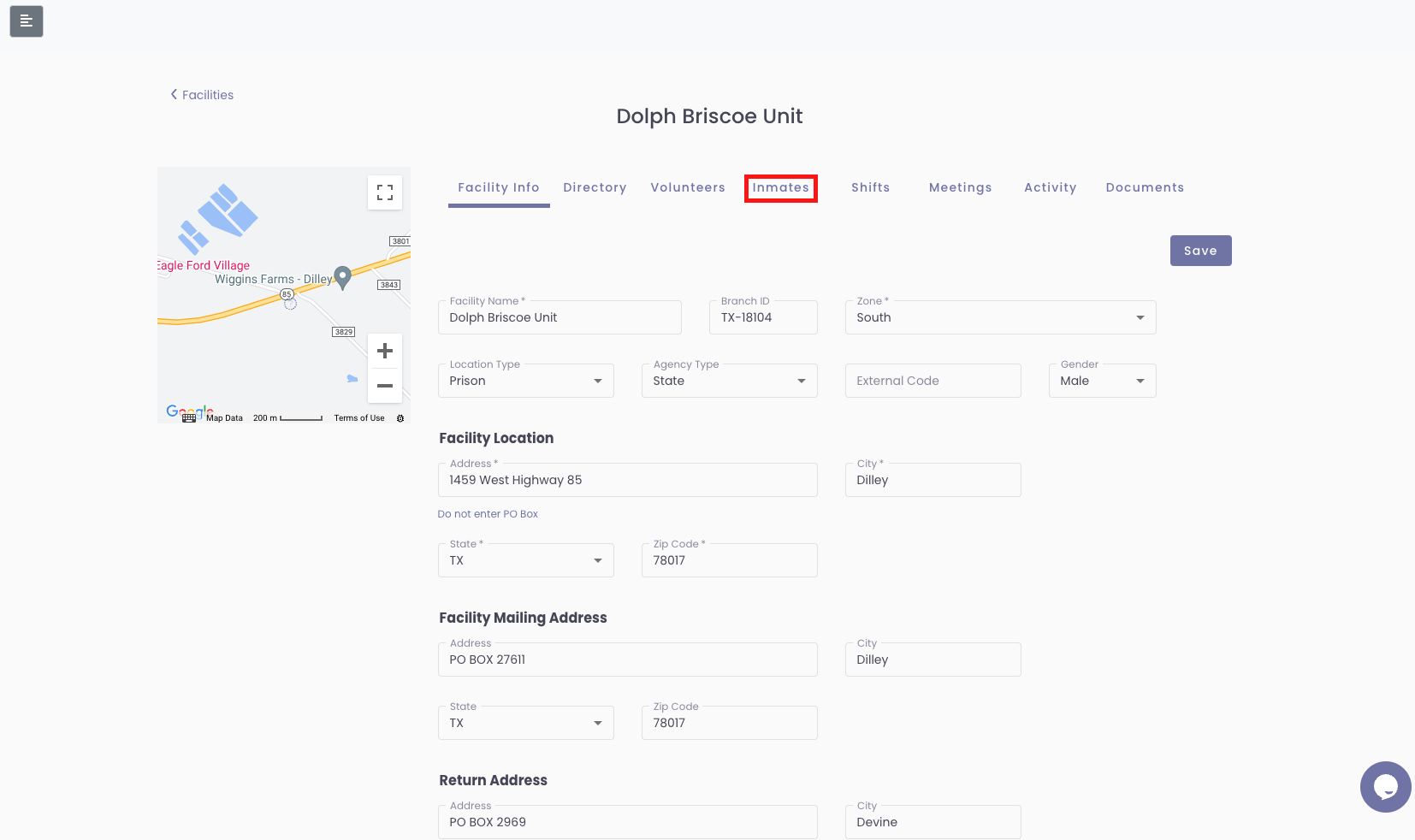
Step 3 Click on the Residents Tab.
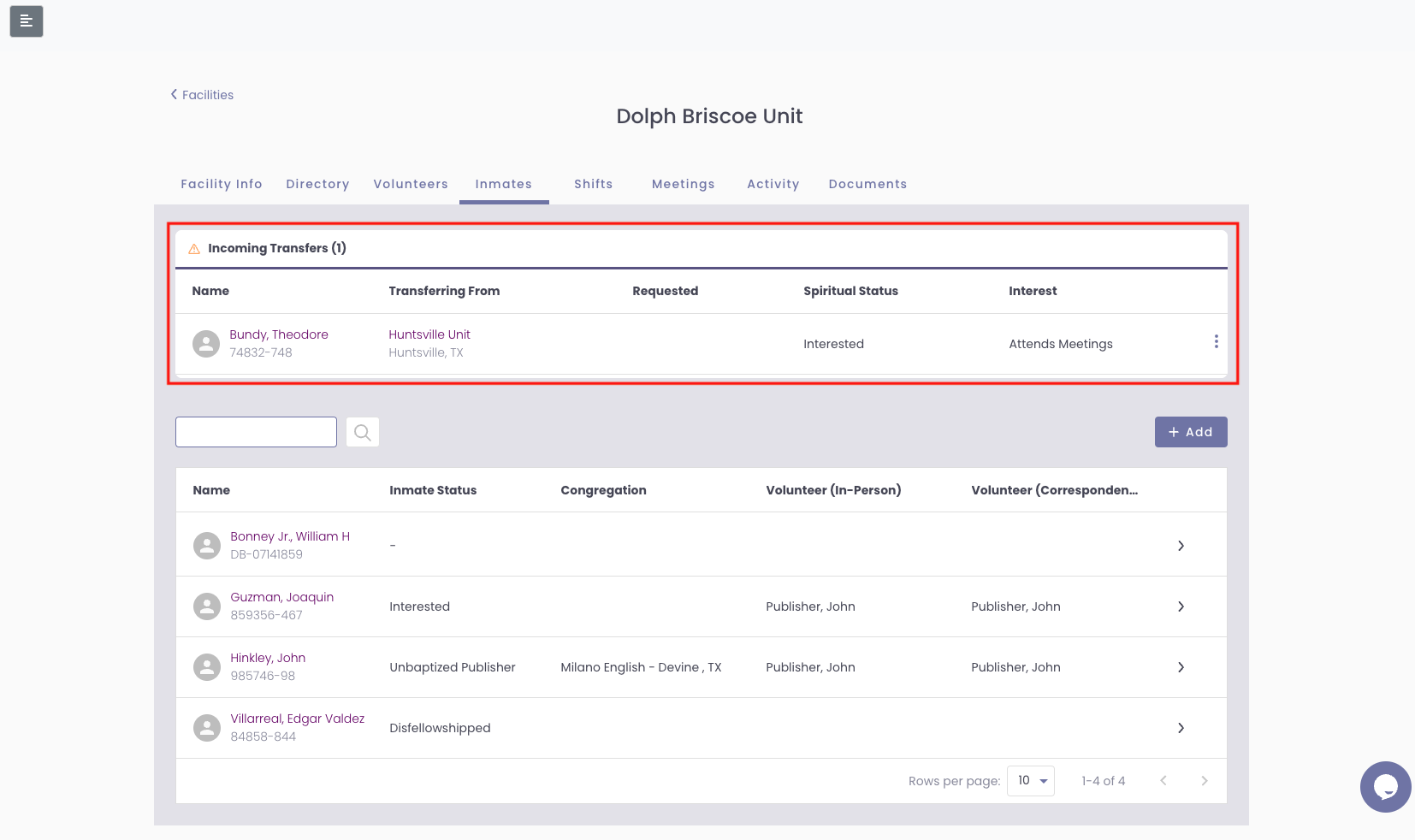
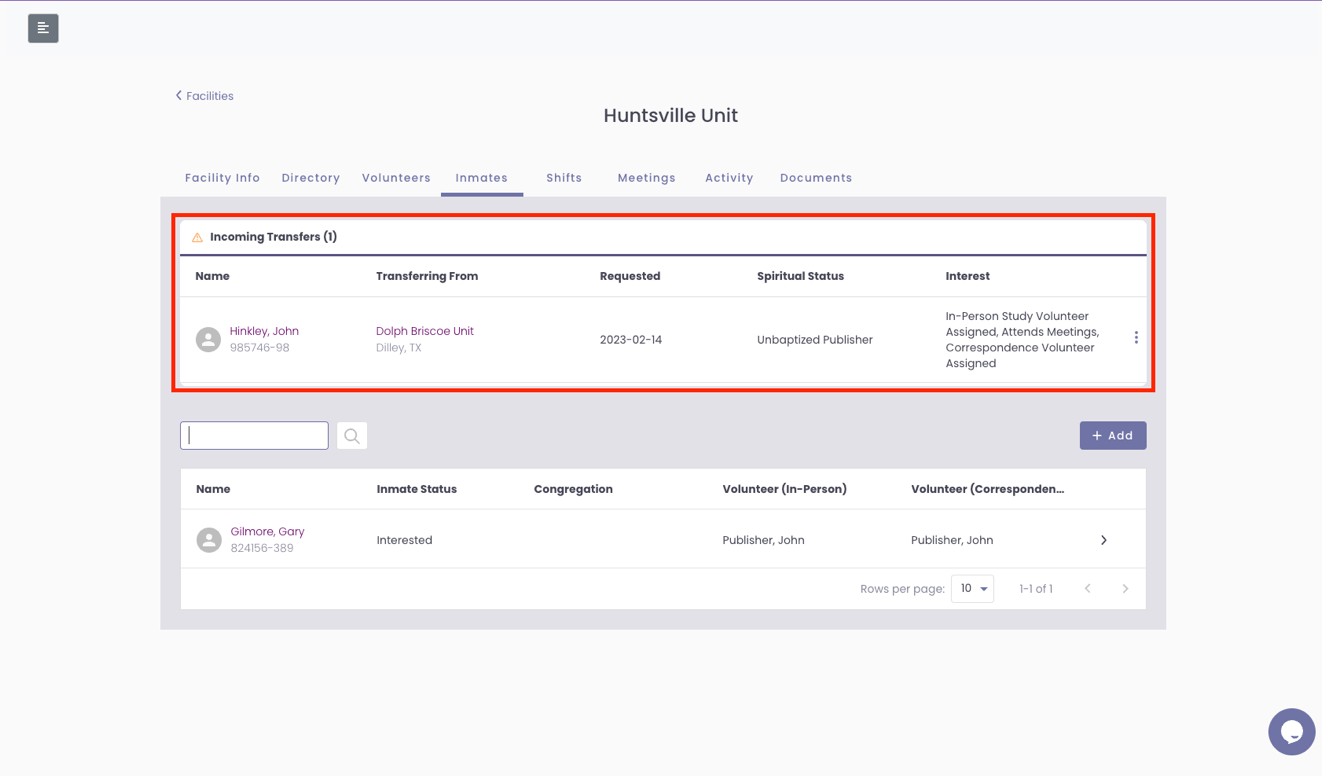
Step 4 In the Residents Tab, under Incoming Transfers, you will see any residents transfers from other facilities to this facility.
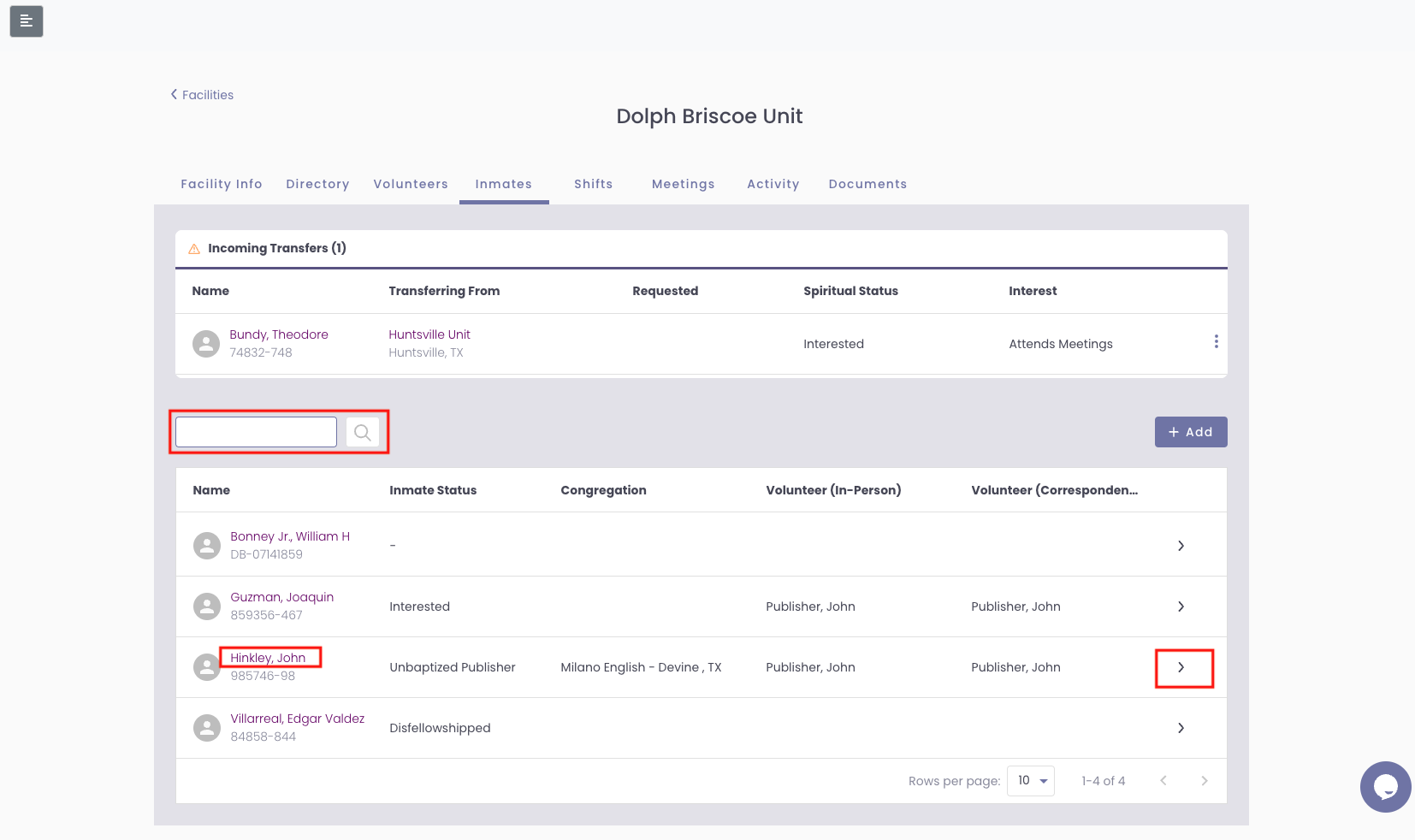
Step 5 If an resident is not readily displayed, enter the name in the search box and click the Search Icon. When the resident is displayed, click on the name or the right ellipses. This will take you to the resident's profile.
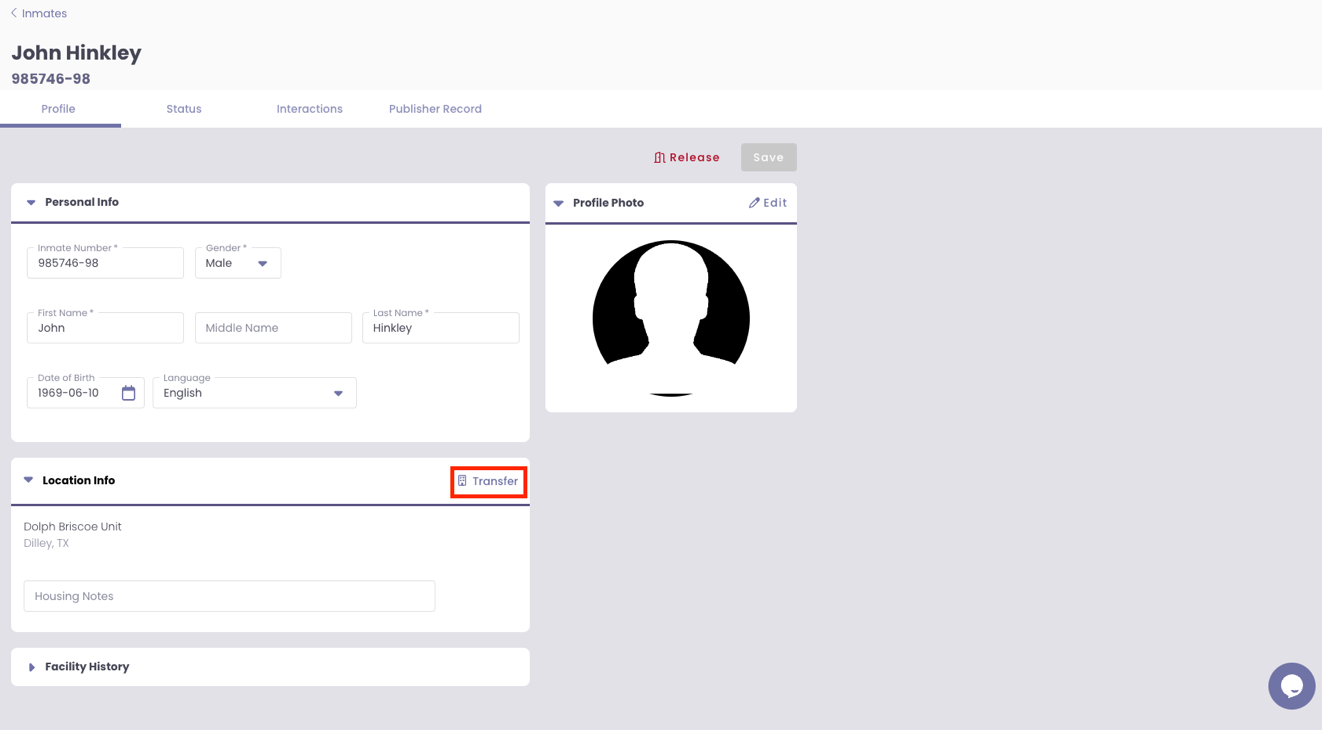
Step 6 In the resident's profile, in the Location Info card, click on Transfer.
Step 7 In the Transfer Resident drawer, you can search for the facility the resident will be transferring. This can be done either by Name or by Location.
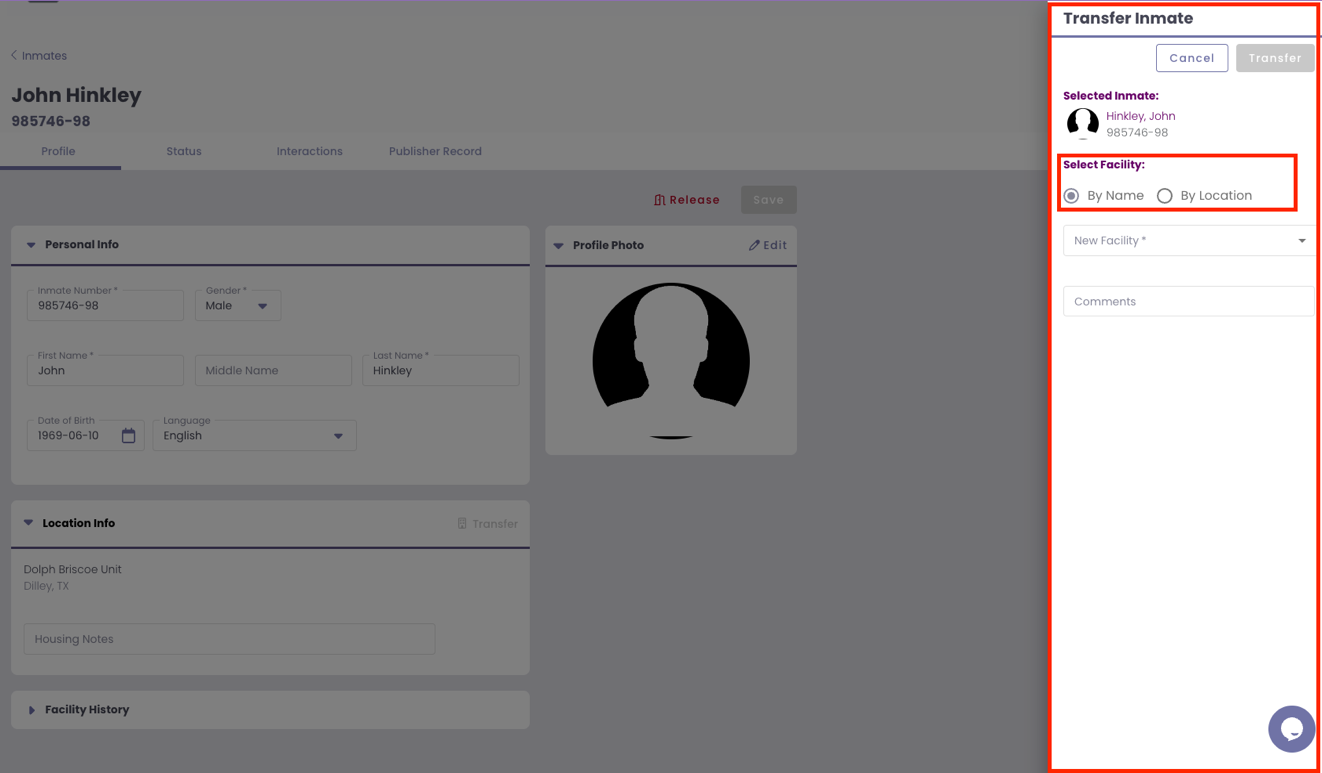
Step 8 To search for a Facility By Name, click on By Name. From the New Facility dropdown menu, select the facility in which the resident is being transferred. Enter any useful information regarding the resident in Comments. Once complete, click the Transfer button.
- Note: Clicking the Cancel button will clear all information from the Transfer Resident drawer and return you to the resident profile.
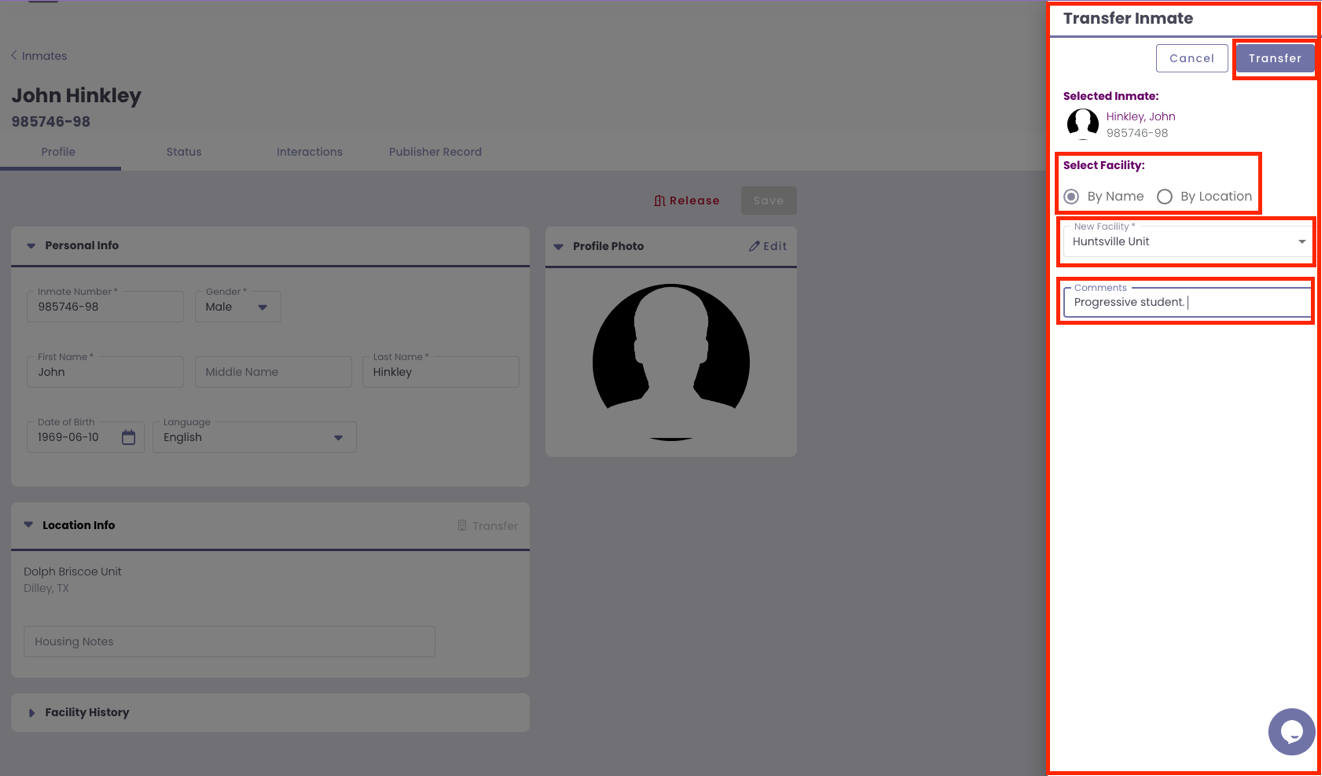
Step 9 To search for a Facility By Location, click on By Location.
- From the State dropdown menu, select the name of the state in which the facility where the resident is being transferred to is located.
- The New Facility dropdown will display all facilities within the selected state.
- To further narrow the results, you can also enter the City in which the facility is located.
- From the New Facility dropdown menu, select the facility in which the resident is being transferred. Enter any useful information regarding the resident in Comments.
- Once complete, click the Transfer button.
- Note: Clicking the Cancel button will clear all information from the Transfer Resident drawer and return you to the resident profile.

- Note: The resident will now appear only in the new facility. The transfer can be found in the Residents Tab, Incoming Transfers card and will be there until the transfer is either accepted or declined by the new facility.
Last Updated: April 26, 2023